 Library
How to share your FreedomRPG story
Updated 2026-07-22
To share your FreedomRPG story, open Your Story from the game header and choose Share snapshot. FreedomRPG creates a fixed illustrated page with the game as it looks now, including narration, dialogue, player messages, dice rolls, and generated images in order. The link is copied for you, and anyone who has it can read the story without an account. Keep playing, rewind, or edit the game afterward and the shared story stays exactly as it was.
Most AI RPG stories are awkward to show someone else. A screenshot catches one exchange, while a plain transcript loses the images and the shape of the game. A shared story keeps everything in reading order without asking the reader to join the game.
Create a shared story
- Open the game you want to share.
- Choose Your Story in the game header.
- Select Share snapshot.
- Send the copied link to anyone you want to read it.
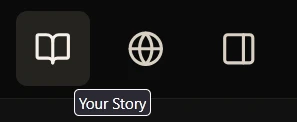
Open Your Story from the game header.
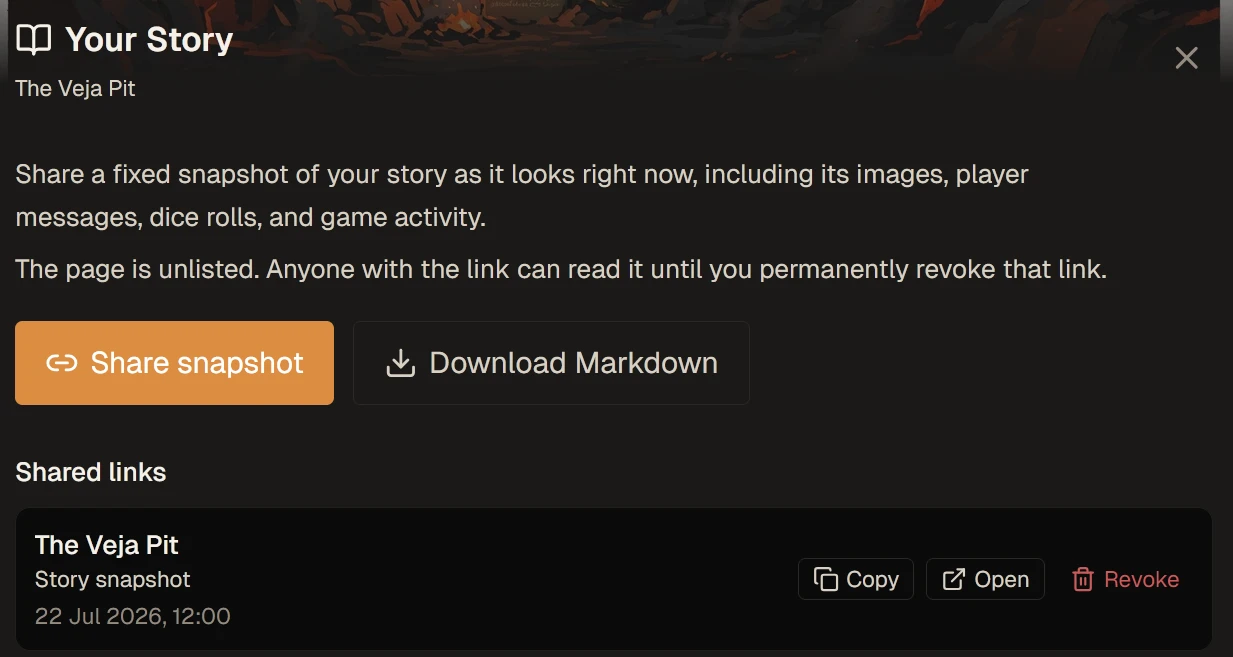
Create and manage fixed shared stories from Your Story.
The shared story also appears under Shared links in Your Story, where you can open, copy, or revoke it. Sharing the same game again creates another fixed story with its own link.
What readers see
A shared story is a reading page, not a screenshot or a raw chat export. It shows the story title, its World, and the date it was shared, then follows the game from its opening in chronological order. Narration, character speech, player messages, join notices, dice rolls, and available generated images keep the same presentation they had during play.
Read The Veja Pit to see a complete shared story from Earthgarden.
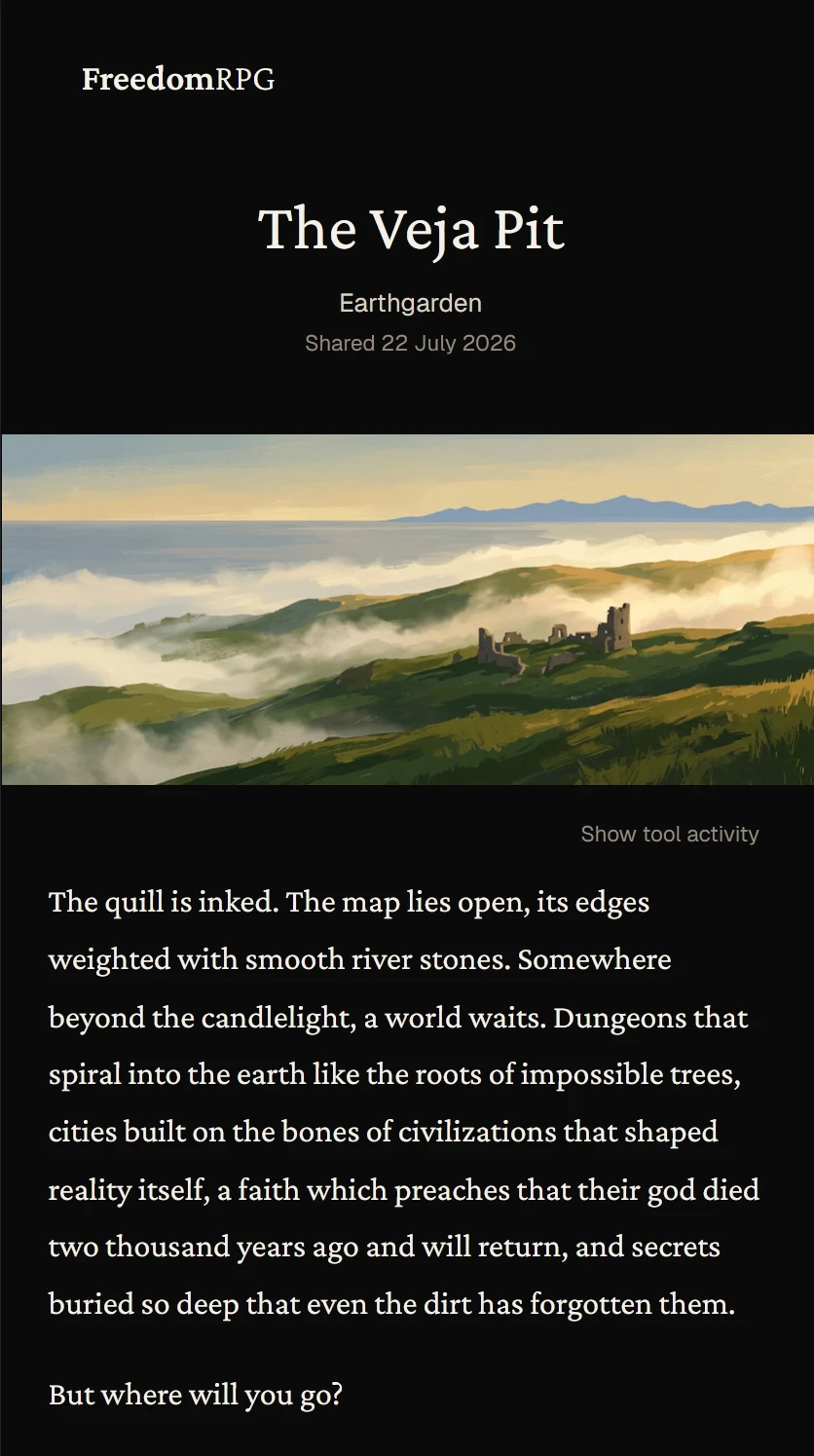
A shared story begins with its title, World, sharing date, and opening image.
Player messages and dice stay in the main story. Other game actions sit behind Show tool activity, keeping the story readable while letting curious readers see more of what changed during play.
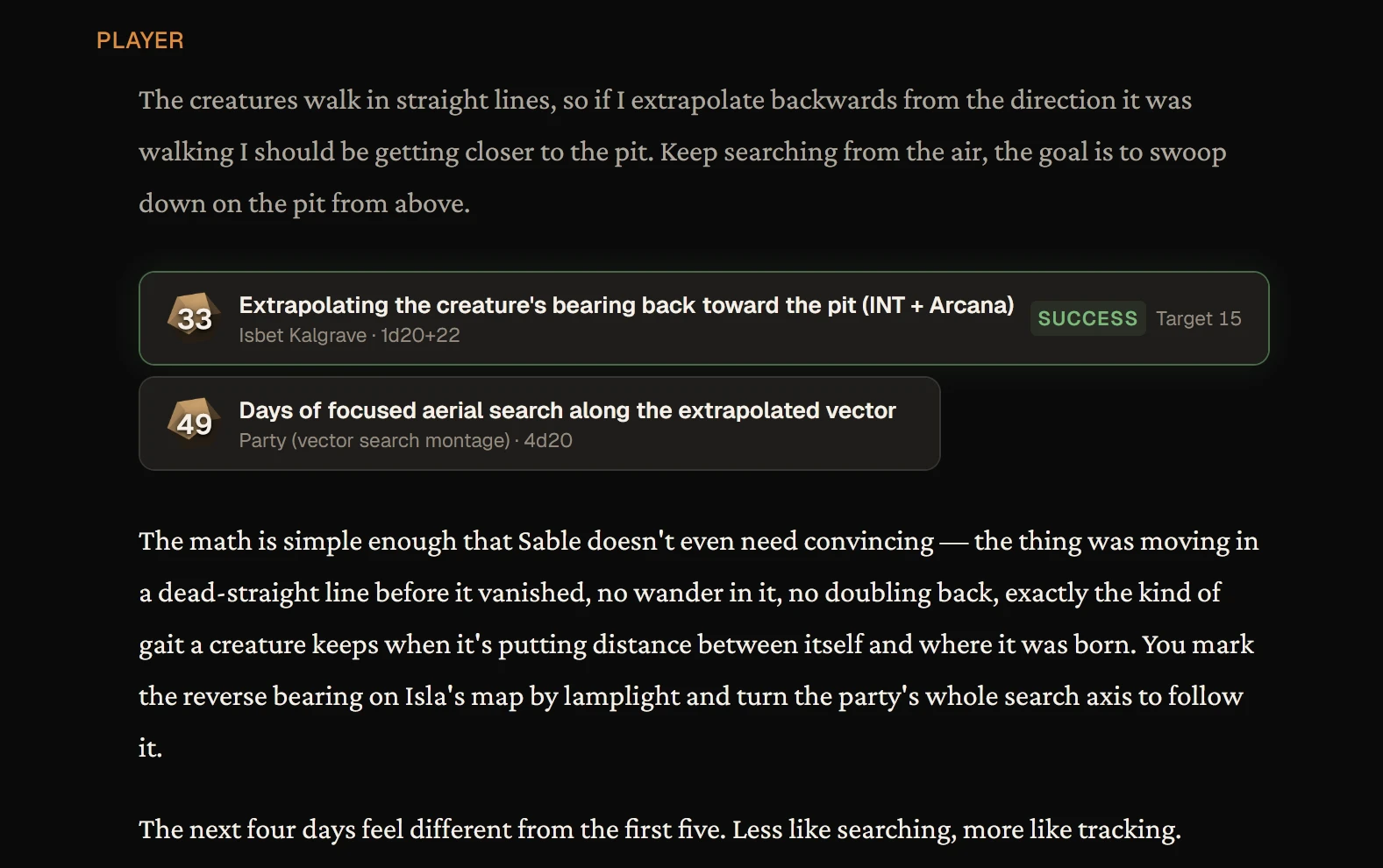
Player messages, dice rolls, and game master responses stay together in reading order.
What stays private
The shared page contains the story, not your game workspace. It leaves out source files and images you uploaded, pasted documents, private whispers, OOC messages, and your FreedomRPG account identity. Readers see the story title, World name, the date it was shared, and the characters as they appeared in play.
An unlisted link is not private access control. Anyone with the link can read it, forward it, or save a copy. Open the shared story yourself before sending it and make sure you are comfortable sharing everything it shows.
Share an updated version
A shared story stays as it was when you created it. Continuing, correcting, rewinding, or deleting the source game does not change the version people already have.
To share an update, open Your Story and choose Share snapshot again. This creates a new shared story with a new link. Send the new link to your readers; the old one remains readable unless you revoke it.
If you want readers to use only the latest version, revoke the old link after sending the new one. Under Shared links, choose Revoke, then confirm Revoke link. Revocation is permanent. It stops FreedomRPG from serving that link, but it cannot recall copies or link previews someone else already saved.
Share the whole story or one moment
Use Your Story and Share snapshot when you want to share the game from its opening through the point you have reached.
To share one scene or turn instead, choose Share this moment on a game master response. FreedomRPG opens your device's share sheet when available, or copies the moment link for you.
Both kinds of link appear under Shared links in Your Story, where you can open, copy, or revoke them.
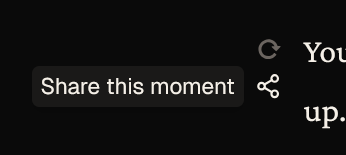
The Share this moment button creates a link to one game master response instead of the whole story.
Questions people ask
Does someone need a FreedomRPG account to read my story?
No. Anyone with the link can read the shared story in a web browser without signing in.
Does a shared story update when I keep playing?
No. It stays as it was when you shared it. To share an update, create a new shared story and send its new link. The earlier version remains readable unless you revoke it.
What stays out of a shared story?
Source files and images you uploaded, pasted documents, private whispers, OOC messages, and your FreedomRPG account identity are left out.
Can I revoke a shared story?
Yes. Open Your Story, find the link under Shared links, and choose Revoke. Revocation is permanent, but it cannot recall copies or link previews that other people already saved.
Begin your story
Share yours in Share Your Stories on the Freedom Discord, or read what other players have made.
Start a game, follow it somewhere worth remembering, and share the story when you are ready.